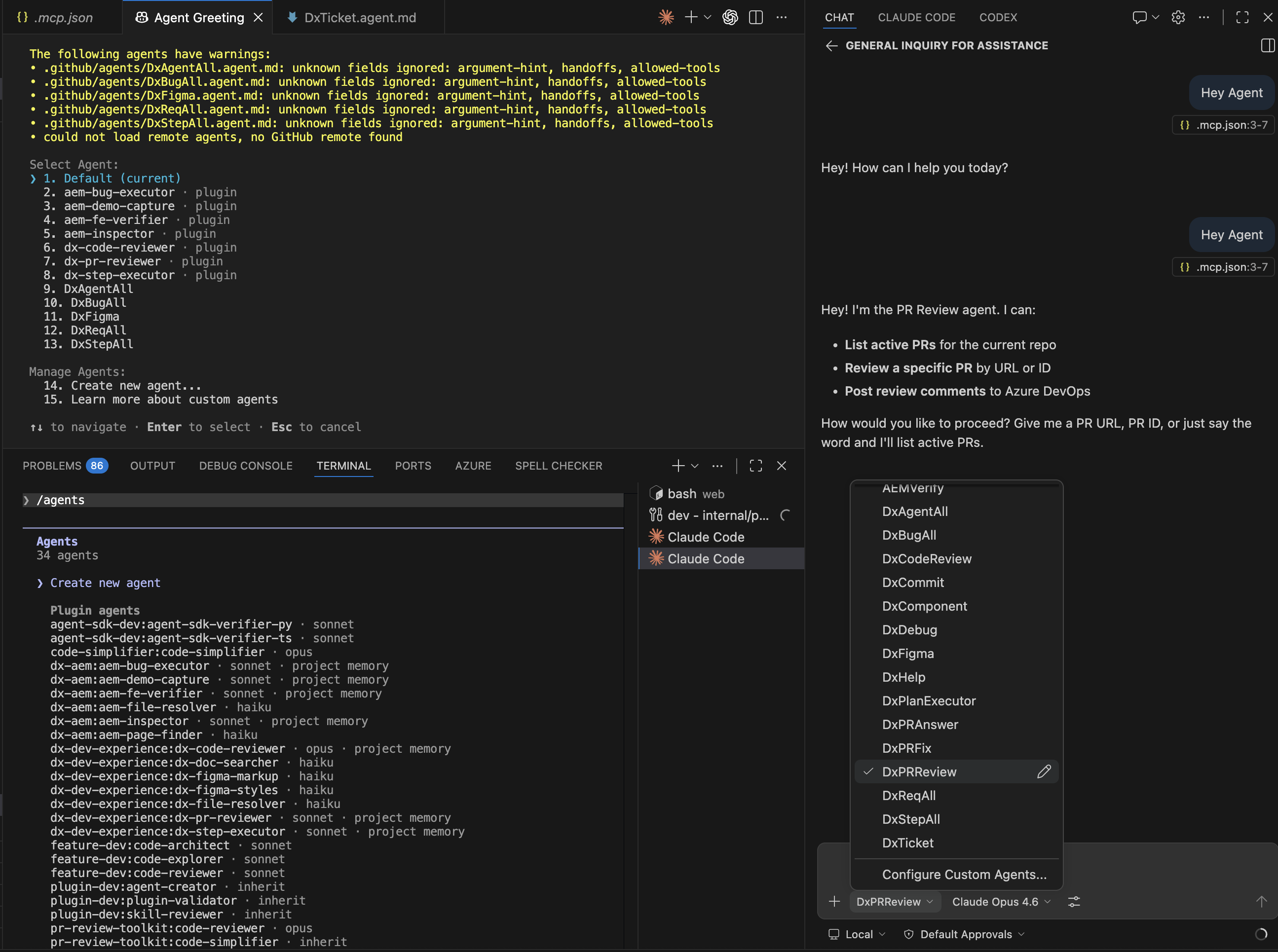
How to Select an Agent: Three UIs, One Concept
Day 4 · Week 1 · Meet Your AI Tools
Slack Message — copy & paste
🤖 Tip #4 — You have dozens of agents available across three tools, but most of the time skills auto-dispatch to the right one for you.
#4 All Tools
Selection in Each Tool
- VSCode Chat — Dropdown menu at the bottom of the Chat panel. Click the agent name, pick from the list (DxPRReview, DxCodeReview, AEMComponent, etc.). Also shows 'Configure Custom Agents...' to manage .agent.md files.
- Copilot CLI — Type `/agents` in the terminal. Get a numbered list of all agents (plugin agents AND .github/agents/ agents). Arrow keys to navigate, Enter to select. The selected agent stays active for your session.
- Claude Code — Type `/agents` for the full inventory. Shows the richest info: agent name with plugin prefix (`dx-aem:aem-inspector`), model tier (`sonnet`), and memory type (`project memory`). All agents across installed plugins visible at once.
Agent Selection /agents Dropdown Auto-Dispatch
#4 Meet Your AI Tools
Auto-Dispatch vs Manual Selection
- 1 Auto-dispatch is the real pattern — Most of the time, you don't manually select agents. Skills auto-dispatch. Running `/dx-pr-review` automatically routes to the `dx-pr-reviewer` agent (Sonnet, with ADO MCP tools). The skill knows which agent is right for the job.
- 2 Manual selection is for exploration — Use `/agents` to discover what's available, learn agent capabilities, and experiment. For actual workflows, let skills handle the routing.
- 3 Run `/agents` in both Claude Code and Copilot CLI — compare the lists (Claude Code shows 13 plugin agents, Copilot shows 25 .github agents)
- 4 Know the selection method per tool
- › VSCode Chat — dropdown at bottom of Chat panel
- › Copilot CLI — `/agents` command, arrow keys + Enter
- › Claude Code — `/agents` command, shows plugin prefix + model tier
Agent Selection /agents Dropdown Auto-Dispatch